
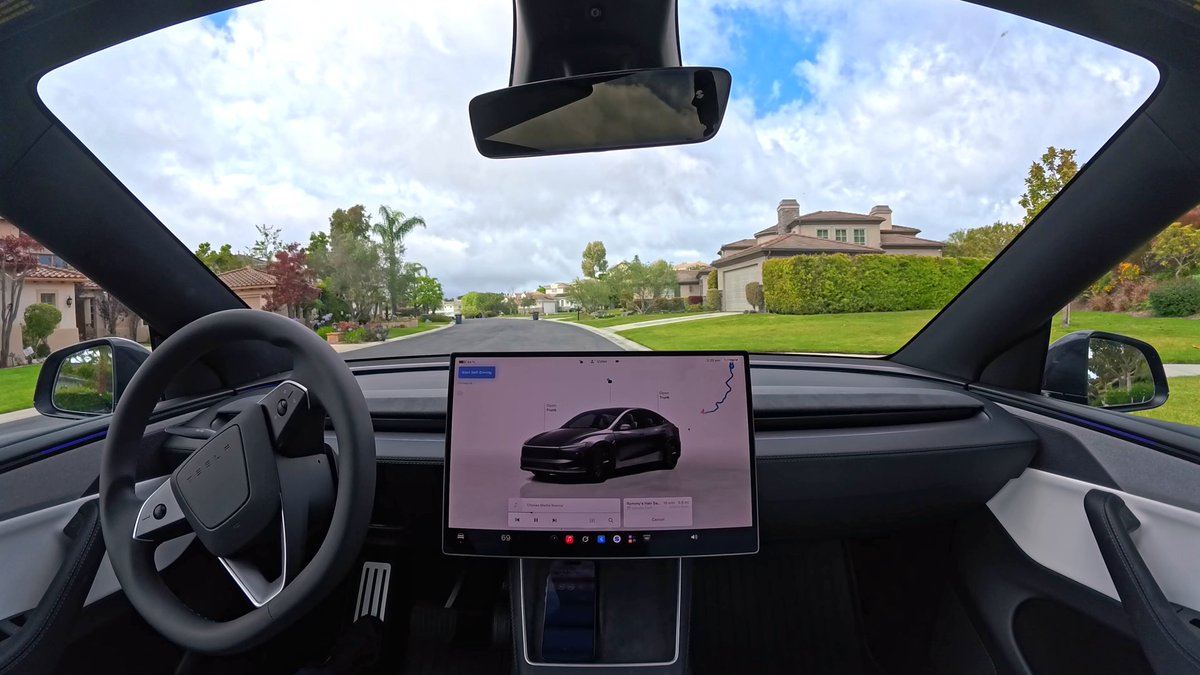
One of Tesla's most underused features is sitting right in your Tesla app: calendar sync. When it's enabled, your car already knows where you're going before you touch the screen — tap the start button and navigation kicks off automatically to your next appointment. No typing, no searching, no distraction.

How It Actually Works
Tesla's calendar integration has been part of the platform since software version 6.0 back in 2014, but a surprising number of owners have never turned it on. Once active, the car pulls events from your connected iPhone or Android calendar for the current and next day. If an event has an address attached, a navigation arrow appears on the touchscreen — one tap and you're routing.
The feature goes a step further on supported models including Model S and Model Y: if an appointment with a clearly specified address is scheduled within two hours of you getting in the car, Tesla can automatically pre-load the route without any input at all. Get in, tap the start button, drive.
How to Enable Calendar Sync
The setup takes about two minutes. You'll need your phone paired via Bluetooth and the Tesla app installed and logged in.
- Open the Tesla app on your iPhone or Android phone.
- Tap your Profile icon in the top-right corner.
- Go to Settings.
- Tap Calendar Sync and toggle it on.
- When prompted, grant the Tesla app permission to access your phone's calendar.
- Make sure the Tesla app is running in the background — it needs to stay active to push calendar data to the car.
- Ensure your phone is connected via Bluetooth when you get in the vehicle.
Once set up, any calendar event that includes a full address will show a navigation arrow on your Tesla's touchscreen. Events for the current day and the following day are displayed.
Getting the Most Out of It
A few habits will make the feature work reliably every time:
- Always include a full address in calendar events, not just a venue name. Tesla needs a geocodable address to generate the navigation arrow.
- Don't force-close the Tesla app between drives. Background operation is what keeps the sync live.
- Bluetooth must be active on your phone when you enter the vehicle — the calendar data transfers over that connection.
- If you prefer a cleaner navigation screen, recent software updates have added an option to hide suggested destinations — useful if you want calendar routing without the extra clutter.
It's a small setup investment for a feature that quietly removes one of the most common in-car friction points: figuring out where you're going while you're already running late. If you haven't turned it on yet, now's the time.

Marcus covers Tesla's software releases, FSD rollouts, and OTA changes. Background in automotive engineering. Based in Austin.
Sources verified at publish time. Spotted an inaccuracy? Email editorial@basenor.com.