
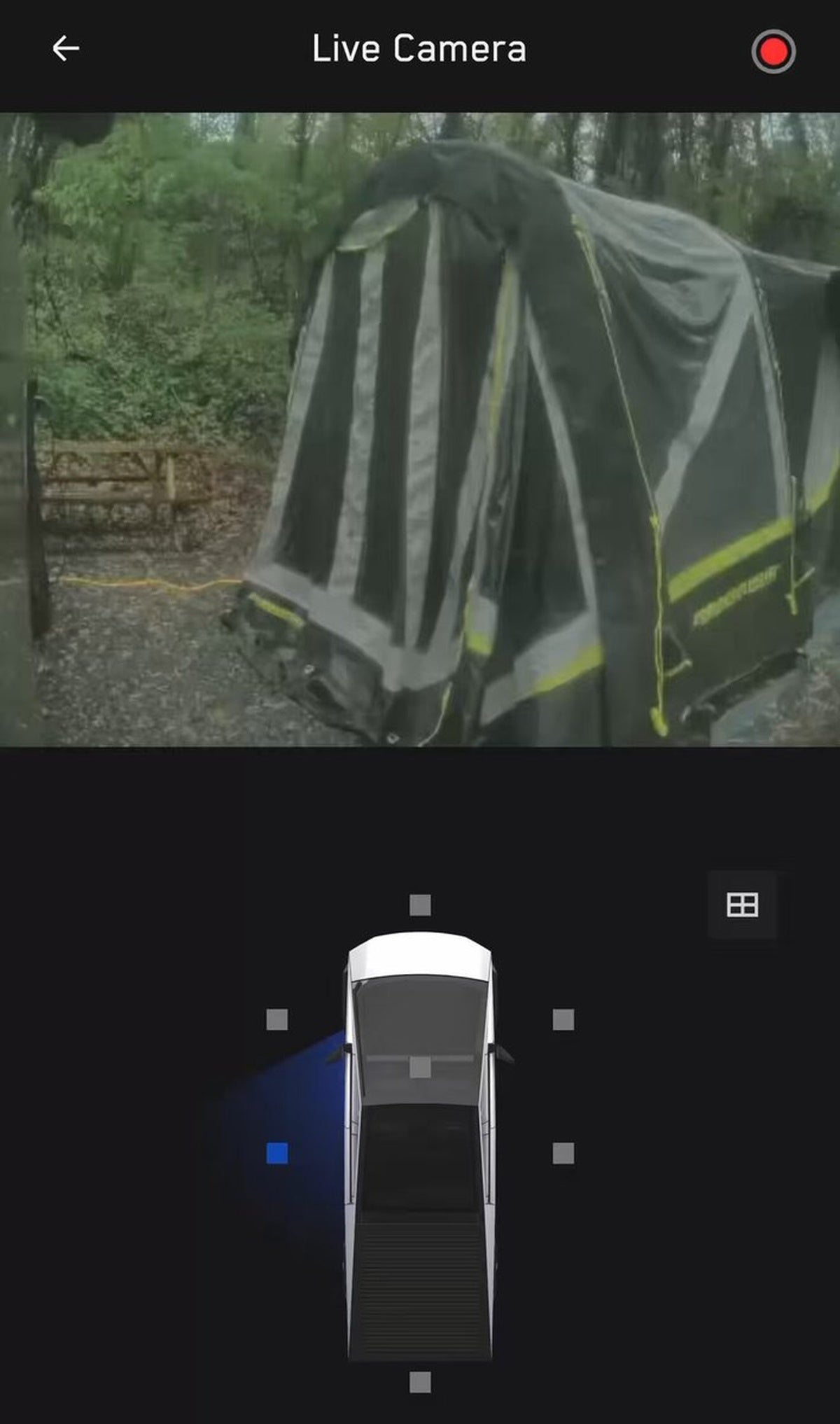
The News: Tesla is actively promoting Live Camera View inside the Tesla App — letting owners remotely watch their car's surroundings in real time from their smartphone.
Why It Matters: Millions of Tesla owners have this capability sitting unused in their app right now. If you haven't activated it, you're leaving one of Tesla's most powerful security tools on the table.
Source: @Tesla on X
Tesla Is Putting Live Camera View Front and Center
Tesla just pushed Live Camera View back into the spotlight — and for good reason. The feature, built into the Tesla App, lets you pull up a real-time feed from your vehicle's external cameras no matter where you are. Parked in an unfamiliar lot? Wondering if someone is circling your car? Open the app and see for yourself.

📊 What Is Live Camera View?
Live Camera View is Tesla's remote monitoring feature that streams your vehicle's onboard camera footage directly to the Tesla App on your phone. It works in conjunction with Sentry Mode — Tesla's always-on security system — and gives you eyes on your car from anywhere with a cellular connection.
| Aspect | Detail |
|---|---|
| What you see | Real-time feed from your Tesla's external cameras |
| Where to find it | Tesla App → Security section |
| Prerequisite | Sentry Mode must be enabled; Premium Connectivity required |
| Connection | Works over cellular (LTE/5G) — no Wi-Fi needed |
| Vehicle requirement | All models with Sentry Mode hardware support |
🚦 Owner's Action Plan
Verdict: Recommended — This is a free security upgrade hiding in plain sight. Takes 3 minutes to set up.
Step 1: Confirm Sentry Mode Is On
In your Tesla, go to Controls → Safety → Sentry Mode and toggle it on. Without Sentry Mode active, Live Camera View won't function.
Step 2: Verify Premium Connectivity
Live Camera View requires a Premium Connectivity subscription. Check your status in the Tesla App under Account → Subscriptions. If you're on Standard Connectivity, you'll need to upgrade to access this feature.
Step 3: Open the Tesla App and Navigate to Security
With your car parked and Sentry Mode running, open the Tesla App on your phone. Tap the Security tile on the main dashboard. You should see the Live Camera View option — tap it to initiate the stream.
Step 4: Choose Your Camera Angle
Once the stream loads, you can typically switch between available camera perspectives — front, rear, and side cameras — to get a full picture of your vehicle's surroundings.
Step 5: Check Your Notification Settings
While you're in the Security section, make sure Sentry Mode alerts are enabled. This way, the app will notify you automatically if Sentry Mode detects a threat — so you can jump into Live Camera View immediately when it matters most.
Who Has Access?
Live Camera View is available across Tesla's lineup — Model 3, Model Y, Model S, Model X, and Cybertruck — provided the vehicle has the necessary camera hardware and a Premium Connectivity subscription is active. If your Tesla was manufactured before the full Autopilot camera suite was standard, check your vehicle's feature list in the app to confirm compatibility.
📰 Deep Dive
Tesla choosing to actively promote Live Camera View in April 2026 is a deliberate move. With vehicle theft and vandalism remaining persistent concerns for EV owners — who often park in public charging locations for extended periods — remote camera access is a genuinely practical tool. The fact that Tesla is surfacing it again suggests the company wants more of its user base to actually use it, not just own it.
The feature's core value proposition is simple: it closes the gap between "I wonder what's happening to my car" and "I can see exactly what's happening to my car." For owners who park in high-traffic urban areas, leave their vehicle at an airport for days, or simply want peace of mind, Live Camera View delivers something no dashcam app can — a live feed from multiple angles, tied directly to the vehicle's own security system.
One practical consideration: Live Camera View does draw on your vehicle's battery while streaming, so it's worth being mindful of session length if you're parked for an extended period without a charger. For short monitoring sessions, the power draw is negligible. For owners who want to check in frequently, keeping the car plugged in while parked at home or at a charging station is the smart move. For more on Tesla's software features and what's new in the app, browse our all software updates coverage.
Related Gear
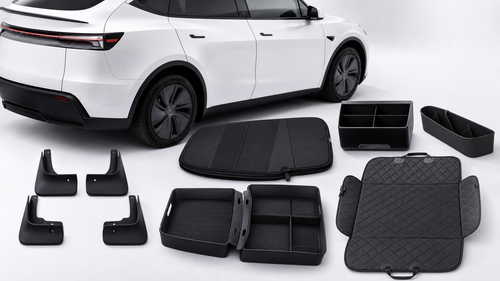
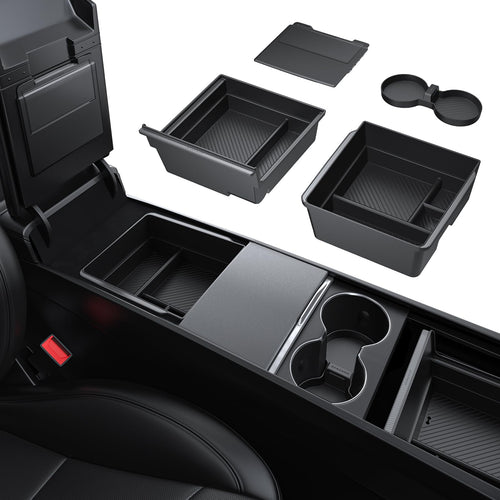
Gear up your Tesla with tested, custom-fit BASENOR accessories — shop Tesla accessories →
Sources & reporting notes
The links below identify the material source records used for this report.
- @Tesla on X (2026-04-19T17:02:59.000Z) — Direct source
Source links are preserved as published or accessed. See our editorial standards and corrections policy.
The BASENOR Editorial Desk covers Tesla, SpaceX, and related technology, curating reporting from primary sources — official accounts, regulatory filings, and software release data. Every article passes source-record and fact-checking review before publication. About the newsroom.
This report was curated by the BASENOR Editorial Desk from the sources listed above. Read our editorial standards or email editorial@basenor.com to report an error.