
Tesla Energy is reminding Powerwall owners about Storm Watch mode as a super El Niño approaches. The feature automatically charges your battery to 100% capacity when severe weather is detected — no manual intervention required. If you've never dug into how it actually works, here's everything you need to know before the next storm hits.

What exactly does Storm Watch mode do?
When Storm Watch activates, it overrides your Powerwall's normal charge schedule and reserve settings, pushing the battery to 100% capacity. The goal is simple: arrive at a potential grid outage with a full tank. Once the weather event passes, the system automatically reverts to whatever operating mode you had set previously — you don't need to reset anything manually.
How does the Powerwall know a storm is coming?
The system pulls from multiple data sources simultaneously: the National Weather Service, third-party weather APIs, and local utility alerts. It's looking for officially issued watches and warnings — not just a rainy forecast. According to Tesla's documentation, Storm Watch triggers on a wide range of severe weather designations, including hurricane watches and warnings, tornado warnings, tropical storm warnings, winter storm warnings, blizzard warnings, flash flood warnings, red flag fire warnings, high wind warnings, and ice storm warnings, among others. If your local authority issues a qualifying alert, Storm Watch responds.
Will I know when it kicks in?
Yes. The Tesla app sends a push notification when Storm Watch activates, and another when the system returns to normal. You won't be left guessing about your battery's status during a weather event — assuming you have notifications enabled for the Tesla app on your phone.
Can I turn it off, or trigger it manually?
Both. Storm Watch can be enabled or disabled entirely through the Tesla app under your Powerwall settings. If you want to pre-charge ahead of a storm that hasn't yet triggered an official warning — say, you're watching a hurricane track toward your area — you can also activate it manually for a scheduled duration directly from the app.
Which countries have access to Storm Watch?
According to Tesla, Storm Watch is currently available in the United States, United Kingdom, Italy, Thailand, Japan, Taiwan, Australia, and New Zealand. If you're in one of these markets and Storm Watch isn't appearing in your Tesla app, check that your Powerwall firmware is up to date and that location permissions are enabled for the app.
Is Storm Watch worth relying on, or should I manually charge before every storm?
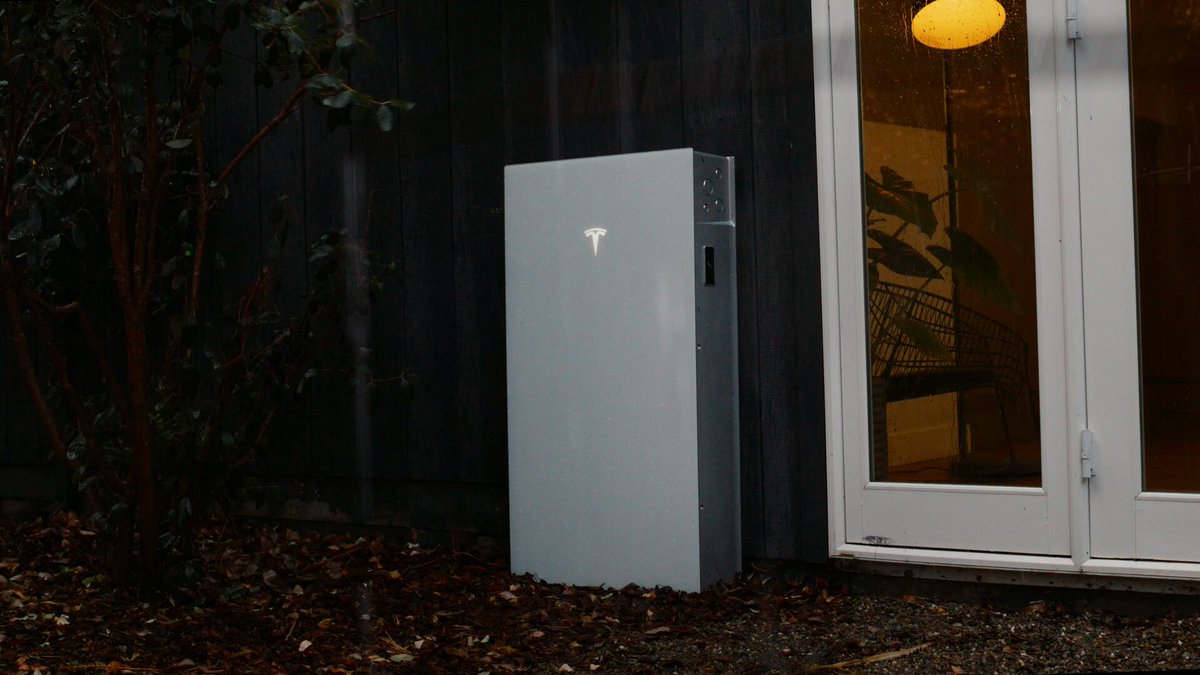
For most owners, the automation is reliable enough that manual intervention isn't necessary — the system is designed to act before the grid goes down, not after. That said, if you're in a high-risk area and tracking a specific storm closely, there's no downside to triggering it manually as a belt-and-suspenders move. The Powerwall 3 offers up to 13.5 kWh of storage and 11.5 kW of whole-home backup power, which according to Tesla can sustain a home through multi-day outages in Public Safety Power Shutoff scenarios. A full charge going into a major weather event is always the right call.
With a super El Niño on the horizon, now is a good time to open the Tesla app, confirm Storm Watch is enabled, and verify your Powerwall's current operating mode. The feature does the heavy lifting automatically — but only if it's switched on.
Related Gear
Gear up your Tesla with tested, custom-fit BASENOR accessories — shop Tesla accessories →
Sources & reporting notes
The links below identify the material source records used for this report.
- @teslaenergy on X (2026-09-09T16:49:35.000Z) — Direct source
Source links are preserved as published or accessed. See our editorial standards and corrections policy.
The BASENOR Editorial Desk covers Tesla, SpaceX, and related technology, curating reporting from primary sources — official accounts, regulatory filings, and software release data. Every article passes source-record and fact-checking review before publication. About the newsroom.
This report was curated by the BASENOR Editorial Desk from the sources listed above. Read our editorial standards or email editorial@basenor.com to report an error.