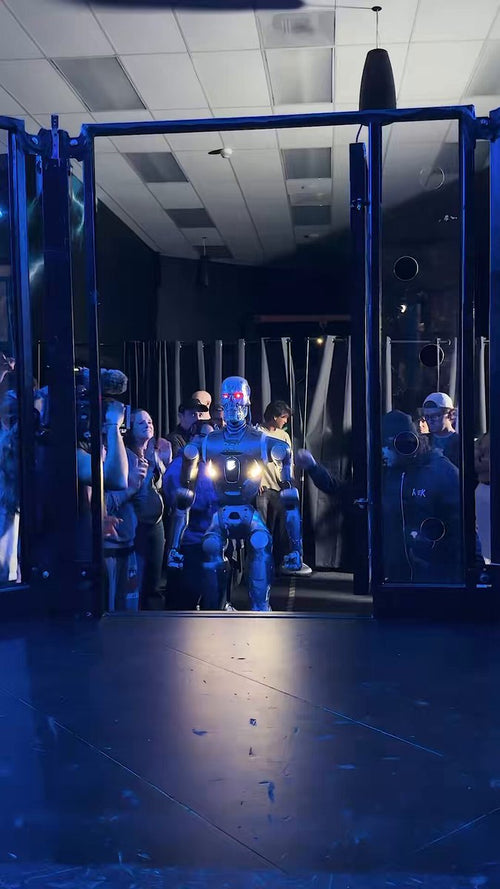

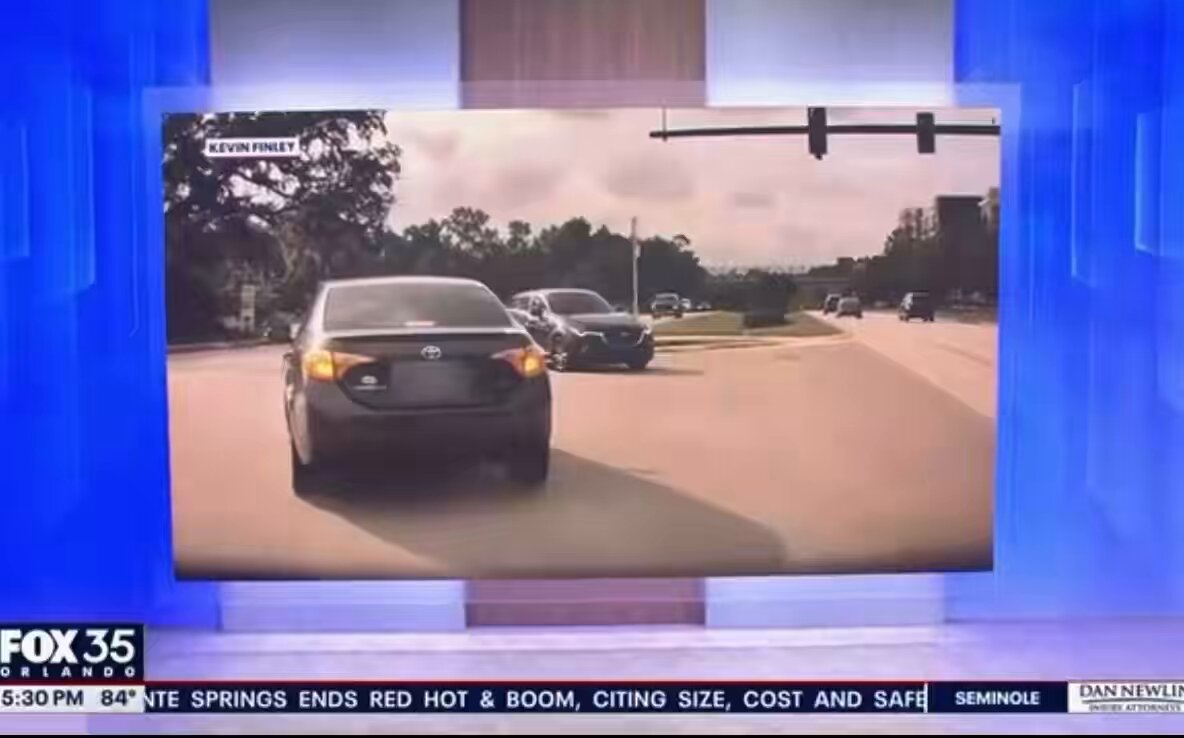
Elon Musk shared a video this week with a simple caption: "A Tesla saves its owner from prison." The clip, which has been viewed nearly 800,000 times, is a sharp reminder that the cameras built into every modern Tesla aren't just for parking lot fender-benders — they can be the difference between freedom and a wrongful conviction. But only if you've set them up correctly.

Why This Matters More Than You Think
Tesla's integrated camera system — covering front, rear, left, right, and interior angles depending on the model — runs continuously while driving and can record while parked via Sentry Mode. That footage has been cited in legal proceedings ranging from insurance disputes to criminal defense cases. When external cameras are absent and witness accounts conflict, your Tesla's timestamped, GPS-tagged video can be the only objective record of what actually happened.
The catch: the system doesn't protect you automatically. A handful of settings and habits determine whether that footage exists when you need it — or whether you're left with nothing.
Action Plan: Make Sure Your Tesla Is Actually Recording
Step 1 — Insert a formatted USB drive or activate Tesla's built-in storage
Dashcam and Sentry Mode footage saves to a USB drive plugged into the glovebox USB-A port (or the center console on newer builds). Without storage media, nothing is saved. On vehicles with the built-in dashcam storage option, confirm it's active in Controls → Safety → Dashcam. If you're using a USB drive, Tesla recommends a high-endurance drive of at least 64 GB formatted to FAT32 or exFAT. The car will prompt you to format it on first use.
Step 2 — Enable Dashcam and set it to Auto
Go to Controls → Safety → Dashcam. Set the mode to Auto so recording begins the moment you start driving — no manual tap required. The dashcam icon in the top status bar will show a red dot when recording is active.
Step 3 — Turn on Sentry Mode for parked protection
Go to Controls → Safety → Sentry Mode and toggle it on. You can also enable "Sentry Mode: On by Default" so it activates every time you park. Note that Sentry Mode draws roughly 1-3 miles of range per hour, so consider excluding trusted locations — your home garage, for example — via the Exclude Home setting to preserve battery.
Step 4 — Save footage immediately after an incident
If something happens while driving, press the dashcam icon in the status bar (or tap the horn icon on the steering wheel if your car supports it) to save a manual clip. This locks the surrounding 10 minutes of footage so it isn't overwritten. If you weren't in the car, check the Sentry Mode viewer in Controls → Safety → Sentry Mode Events and save any relevant clips to a separate folder on your drive before the rolling buffer overwrites them.
Step 5 — Back up footage regularly
Your USB drive has a finite buffer — typically 1 hour of dashcam footage and up to 60 Sentry Mode clips before older files are overwritten. Pull the drive every week or two and copy anything worth keeping to a computer or cloud storage. This is especially important if you park in high-traffic or high-risk areas regularly.
Step 6 — Know how to retrieve footage for legal use
Footage is stored in folders labeled SavedClips (manual saves and TeslaCam events), SentryClips (Sentry Mode triggers), and RecentClips (rolling buffer). Files are standard MP4 format and can be played on any device or submitted directly to law enforcement or attorneys. Timestamps and GPS coordinates are embedded in the metadata — details that carry significant weight in legal proceedings.
A Few Things to Keep in Mind
Sentry Mode footage has been used in both directions in court — it can exonerate an owner, but it can also capture behavior that works against them. The camera doesn't editorialize. Whatever happened, it records. That's exactly the point: an objective record is more valuable than any witness account, in either direction.
It's also worth knowing that Tesla can be compelled by a valid court order to provide data stored on its servers — including trip logs, speed data, and autopilot status — independent of anything on your USB drive. That data has appeared in civil and criminal cases. The car is always watching, which is a feature when you need it and a consideration worth understanding as an owner.
The story Musk shared is a dramatic example, but the underlying lesson is straightforward: a system that isn't configured correctly is just hardware. Spend ten minutes checking these settings today, and your Tesla becomes a reliable witness — one that never forgets and can't be intimidated.
Related Gear
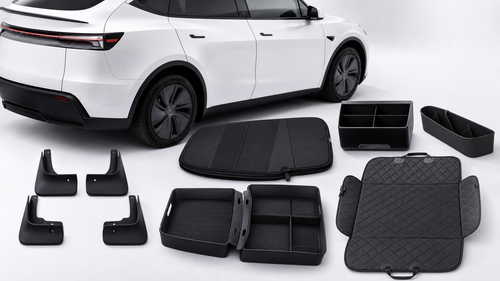
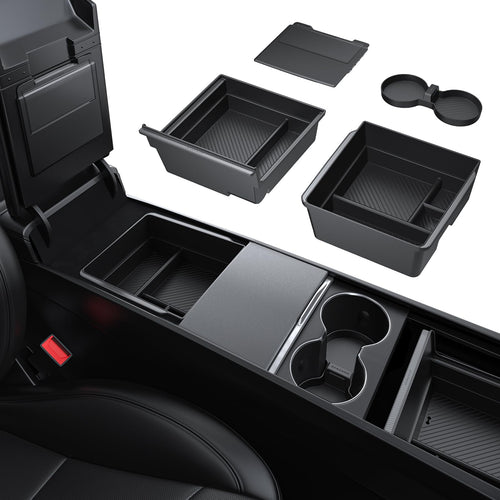
Gear up your Tesla with tested, custom-fit BASENOR accessories — shop Tesla accessories →
Sources & reporting notes
The links below identify the material source records used for this report.
- @elonmusk on X (2026-09-20T20:13:43.000Z) — Direct source
Source links are preserved as published or accessed. See our editorial standards and corrections policy.
The BASENOR Editorial Desk covers Tesla, SpaceX, and related technology, curating reporting from primary sources — official accounts, regulatory filings, and software release data. Every article passes source-record and fact-checking review before publication. About the newsroom.
This report was curated by the BASENOR Editorial Desk from the sources listed above. Read our editorial standards or email editorial@basenor.com to report an error.