
Tesla has released its annual Holiday Update, and this year's drop is one of the more feature-dense OTA packages the company has pushed in recent memory. Version 2025.44.25.1 — and subsequent point releases — began rolling out on December 9, 2025, bringing over a dozen confirmed additions ranging from practical navigation upgrades to a full Santa Mode makeover. Here's what landed, who gets it, and what you should do right now.

What's New in the Holiday Update
| Feature | What It Does | Type |
|---|---|---|
| Grok Navigation Commands (Beta) | Add and edit nav destinations by voice via Grok | Official |
| Tesla Photobooth | In-car selfies with filters, stickers, and emoji — shareable via the Tesla app | Official |
| Dog Mode Live Activity | iPhone Live Activity shows cabin snapshots, temp, battery, and climate in real time | Official |
| Dashcam Telemetry | Clips now overlay speed, steering angle, and FSD state | Official |
| Santa Mode | Visualization becomes a Santa sled with Optimus as Santa; new lock chime and festive trees | Official |
| Jingle Rush Light Show | New light show with timed playback and richer customization | Official |
| Paint Shop (formerly Colorizer) | Custom wraps, window tints, and license plate styles for your avatar; USB-loaded designs supported | Official |
| Supercharger Site Map | 3D view of select Superchargers showing live occupancy and nearby amenities (18 pilot locations) | Official |
| Navigation Overhaul | Reorder favorites, pin Home/Work locations, more intuitive layout | Official |
| Automatic Carpool Lane Routing | Navigation routes via carpool lanes when the option is enabled | Official |
| Phone Left Behind Chime | Alert fires if you exit without your phone | Official |
| Charge Limit Per Location | Set different charge limits depending on where you're parked | Official |
| ISS Docking Simulator | New Toybox game simulating docking with the International Space Station | Official |
How to Check for the Update
Tesla rolls out OTA updates in waves, so not every car receives it simultaneously. Here's how to confirm your status and push the process along:
- Check your current version. On your touchscreen, tap Controls → Software. Your installed version appears at the top. You're looking for 2025.44.25.1 or a later point release in that branch.
- Connect to Wi-Fi. Tesla strongly prefers a home Wi-Fi connection for large OTA packages. Go to Controls → Wi-Fi and confirm you're connected before bed — updates typically install overnight.
- Check the Tesla app. Open the Tesla mobile app, tap your car, then Software. If an update is queued, you'll see a yellow banner. Tap Schedule or Install Now.
- Be patient if you don't see it yet. Staged rollouts can take days to weeks to reach the full fleet. Vehicles on Hardware 3 (HW3) with the AMD Ryzen chip were prioritized in the initial wave, according to community reports.
Features That Need Manual Activation
Several of the new additions don't turn themselves on — you'll need to enable them manually once the update installs:
- Grok Navigation Commands: Go to Controls → Voice → Grok Personality and switch it to Assistant. Then use the voice button and say something like "Add a stop at [location]."
- Dog Mode Live Activity (iPhone only): Enable Dog Mode as usual from Controls → Safety. The Live Activity widget should appear on your iPhone lock screen automatically when Dog Mode is active — make sure your Tesla app has Live Activity permissions enabled in iOS Settings.
- Automatic Carpool Lane Routing: In Navigation → Settings, look for the carpool lane toggle and enable it. It will only activate on routes where HOV lanes are mapped.
- Charge Limit Per Location: Pull up to a location you want to customize, then go to Charging → Set Limit. You should see an option to save the limit for that specific location.
- Paint Shop: Tap your car avatar on the main screen, then select Customize. The old Colorizer is now labeled Paint Shop with expanded options. To load a custom design, save it to a USB drive and plug it into your car's USB port.
A Note on Hardware Compatibility
According to community reports, this update was initially prioritized for vehicles running Hardware 3 with the AMD Ryzen infotainment chip. If you're on older hardware, some features — particularly the more graphically intensive ones like the Supercharger 3D map and enhanced visualizations — may arrive later or behave differently. Check your hardware generation under Controls → Software → Additional Vehicle Information.
The Supercharger Site Map feature launched as a pilot at 18 locations (17 in California, 1 in Texas), so most owners won't see the 3D view at their local charger yet — that's expected to expand over time.
📋 Tracking Tesla software? See every firmware, FSD and app version in one place in our Tesla Software Update Tracker.
Related Gear
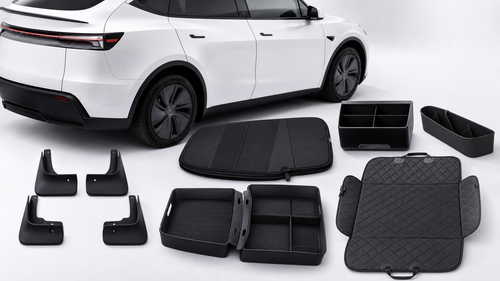
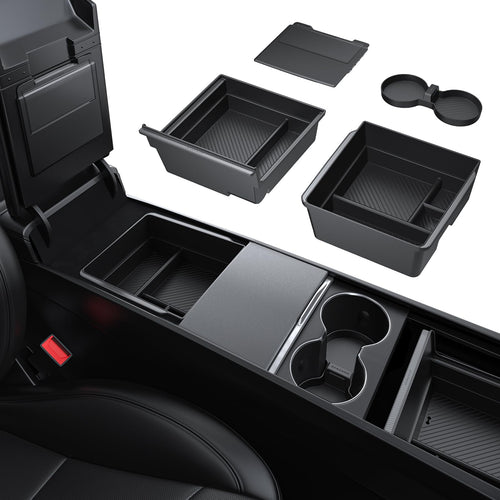
Gear up your Tesla with tested, custom-fit BASENOR accessories — shop Tesla accessories →
Sources & reporting notes
The links below identify the material source records used for this report.
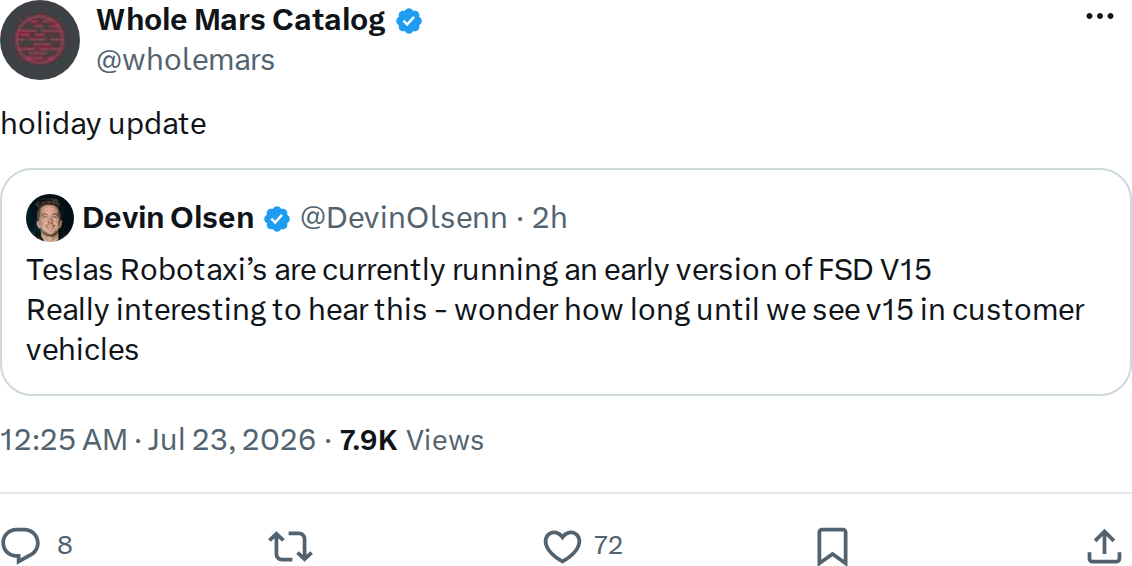
- @wholemars on X (2026-07-23T00:25:17.000Z) — Direct source
Source links are preserved as published or accessed. See our editorial standards and corrections policy.
The BASENOR Editorial Desk covers Tesla, SpaceX, and related technology, curating reporting from primary sources — official accounts, regulatory filings, and software release data. Every article passes source-record and fact-checking review before publication. About the newsroom.
This report was curated by the BASENOR Editorial Desk from the sources listed above. Read our editorial standards or email editorial@basenor.com to report an error.