
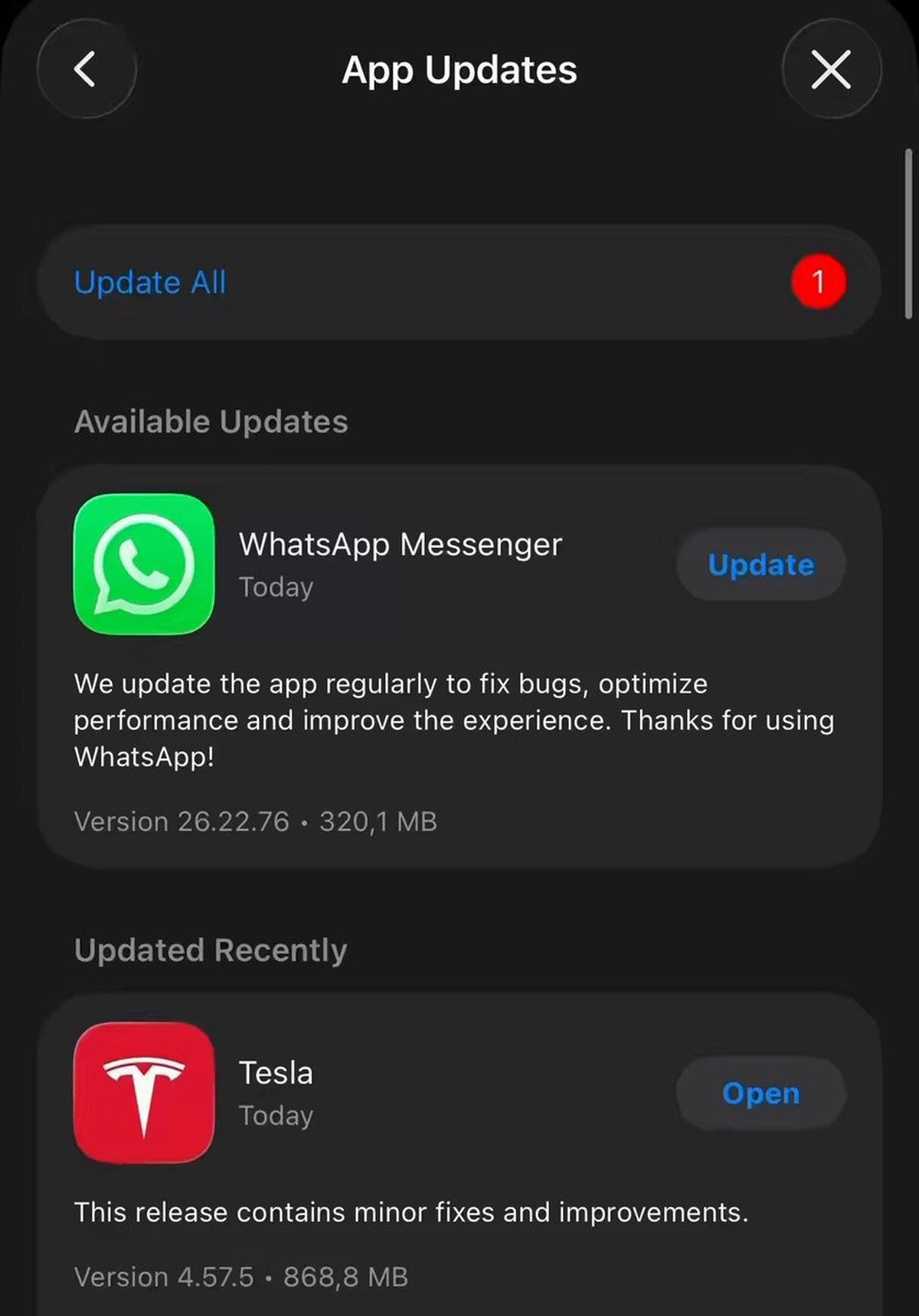
Tesla's app update 4.57.5 has been causing headaches for a growing number of users since it began rolling out around June 5–6, 2026. Reports describe the app getting stuck in a repeating install loop — some iOS users have seen their phone attempt the same update five or more times in a single day without ever completing it successfully. Tesla has not issued an official statement on the problem as of this writing.

What's in Version 4.57.5
The update itself isn't trivial — it includes a handful of meaningful changes worth having. According to teslahubs.com, version 4.57.5 renames the "My Home" section to "Tesla Home" for owners of Wall Connectors, Powerwalls, and Tesla Solar systems. It also brings improved parental controls and reportedly contains early hints of future integration for heat pump and accessories control. For most owners, these are worthwhile additions — which makes the install failure all the more frustrating.
What's Actually Happening
The most widely reported symptom is an update loop: the Tesla app appears to download and install 4.57.5, shows a completion screen, then immediately prompts for the same update again. Some iOS users have reported this cycle repeating at least five times within 24 hours. The issue appears most documented on iOS (including iOS 26.5.1), though it's unclear whether Android users are similarly affected. No confirmed trigger or root cause has been identified publicly yet.
Steps to Try Right Now
Tesla's general app troubleshooting guidance, combined with what's worked for users in similar past situations, points to a few approaches worth trying:
- Force-close and reopen the app. Don't just background it — swipe it fully closed, wait 10 seconds, then reopen.
- Sign out and sign back in. Go to your profile in the app, sign out completely, then sign in again. This clears cached session data that can interfere with update verification.
- Delete and reinstall the app. This is the most reliable reset. Your vehicle data and account are cloud-stored, so nothing is lost. Download fresh from the App Store or Google Play.
- Disable any active VPN. Tesla's update servers can behave unexpectedly when traffic is routed through a VPN. Turn it off before attempting the install.
- Check your iOS/Android version. Ensure your phone's OS is up to date — an outdated OS can occasionally cause app verification failures.
If none of these resolve the loop, the most practical move is to wait. Issues like this are typically patched in a rapid follow-up release. Keep an eye on the App Store for a 4.57.6 or similar point update in the coming days.
If you're actively experiencing the loop, it's worth leaving a note in the App Store review or flagging it through Tesla's in-app feedback — the more reports Tesla receives, the faster a fix tends to surface. Check our all software updates coverage for any patch news as it breaks.
📋 Tracking Tesla software? See every firmware, FSD and app version in one place in our Tesla Software Update Tracker.
Related Gear
Gear up your Tesla with tested, custom-fit BASENOR accessories — shop Tesla accessories →
Sources & reporting notes
The links below identify the material source records used for this report.
- @TeslaNewswire on X (2026-06-07T18:46:26.000Z) — Direct source
Source links are preserved as published or accessed. See our editorial standards and corrections policy.
The BASENOR Editorial Desk covers Tesla, SpaceX, and related technology, curating reporting from primary sources — official accounts, regulatory filings, and software release data. Every article passes source-record and fact-checking review before publication. About the newsroom.
This report was curated by the BASENOR Editorial Desk from the sources listed above. Read our editorial standards or email editorial@basenor.com to report an error.